
Imagine sitting on your sofa, remote in hand, ready to explore a world of entertainment. Choosing a device for your new uk iptv service can feel difficult, with endless options available. Many viewers feel excited about internet television, yet unsure where to begin.
This guide shows you how to set up your IPTV service with ease. It covers service availability, device, app, and subscription choices. You will learn about smart TVs, streaming sticks, and set-top boxes, then choose what suits your viewing preferences.
Your viewing quality depends on your provider, chosen device, and home network. By the end, you will know how to manage installation, channel organisation, and troubleshooting. Each task is broken into manageable steps.
Before you begin, verify your provider’s service rights, supported equipment, and payment security. This guide helps you enjoy your favourite shows without trouble.
Key Takeaways
- Understand the different devices available for IPTV.
- Learn about the importance of service rights and supported equipment.
- Discover tips for optimising your streaming quality.
- Get step-by-step instructions for setup and troubleshooting.
- Explore subscription options that suit your needs.
1. Understand what UK IPTV is and what you need to get started
To use UK IPTV, first understand how it works: Internet television services send content through your internet connection. They provide live channels and on-demand programmes without depending only on aerials or satellite dishes. This flexible and convenient approach is popular with viewers across the UK.
When you subscribe to an IPTV service, you typically gain access to:
- Live channels: Watch your favourite shows as they air.
- On-demand content: Choose from a library of films and series whenever you want.
- Catch-up TV: Access programmes you may have missed within a specified time frame.
Features vary between providers because of their licensing agreements. Review each service carefully before making your choice.
How internet television services deliver live channels and on-demand programmes
IPTV streams content over the internet. These internet television services provide many channels and shows without bulky equipment. Live content plays in real time, while on-demand programmes are available when you choose.
Check your internet connection, equipment and viewing needs
Before using IPTV, check that you have the right equipment and a reliable internet connection. Use this simple checklist to prepare:
| Requirement | Description |
|---|---|
| Internet Connection | A stable broadband connection with a minimum speed of 10 Mbps is recommended for smooth streaming. |
| Compatible Device | Your TV, streaming device, or set-top box must support IPTV apps. |
| IPTV App | Download a compatible IPTV app or use the supplied set-top box from your provider. |
| Subscription | Ensure you have a valid subscription and your provider’s login details. |
Consider how many people will watch at the same time, as this may affect your subscription price. You may need multiple connections for several viewers. Also decide whether you want UK channels, sports, or films, and whether you prefer a smart TV, mobile device, or extra screens.
Remember that IPTV is a delivery method. A service’s legality and reliability depend on its content rights and business practices. Choose providers that operate transparently and follow broadcasting regulations.
“The best IPTV services are those that operate transparently and adhere to broadcasting regulations.”
2. Choose a UK IPTV service and compare subscription options
When choosing a UK IPTV service, look beyond its basic price. Compare the channel selection, video on demand, and customer support. Features vary between services and can shape your viewing experience.
Review channel selection, video on demand, the electronic programme guide and support
Check the channel selection first, as services offer broad line-ups or niche channels. See whether it includes a video on demand library for shows and films. The electronic programme guide (EPG) helps you browse live channels and plan viewing.
Also consider customer support. A reliable team can solve problems and make streaming smoother. Choose services offering live chat, email, and phone support.
Compare the supplied connection and subscription prices
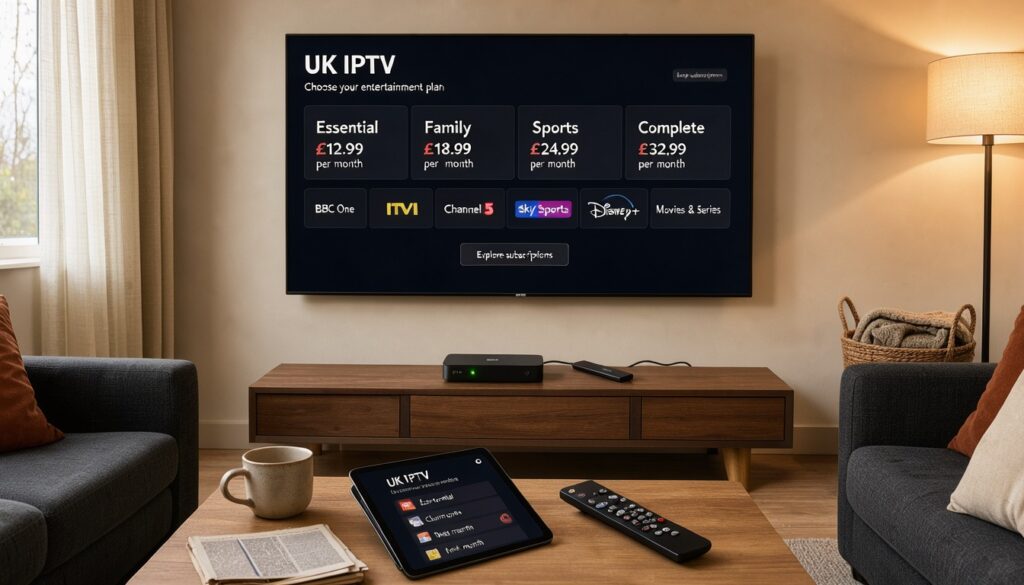
Typical plans include 1 month £13 and 3 months £25 with 1 month free. They also include 6 months £35 with 2 months free and 12 months £60 with 3 months free.
| Connections | 1 Month | 3 Months | 6 Months | 12 Months |
|---|---|---|---|---|
| 1 Connection | £13 | £25 with 1 month free | £35 with 2 months free | £60 with 3 months free |
| 2 Connections | £19 | £35 with 1 month free | £55 with 2 months free | £75 with 3 months free |
| 3 Connections | £25 | £50 with 1 month free | £75 with 2 months free | £99 with 3 months free |
| 4 Connections | £30 | £65 with 1 month free | £99 with 2 months free | £130 with 3 months free |
Understand what “connections” means before buying. It may mean simultaneous use or the number of registered devices. Confirm the provider’s exact terms first.
If you have not tested the service on your device, consider a shorter plan. Longer plans may reduce your average monthly cost, but could disappoint if the service fails to meet expectations. Check the cancellation rules clearly to avoid surprises.
3. Check IPTV device, app and smart TV compatibility
Check your set-top box compatibility before choosing an IPTV service. Your TV, streaming device and set-top box must be supported. This helps prevent frustration and wasted subscription money.
First, match your TV or streaming device with the IPTV service. Providers support different devices, so check their websites for compatible device lists. Common options include:
- Samsung and LG smart TVs
- Android TV devices
- Amazon Fire TV products
- Apple TV
- Android phones and tablets
- iPhones and iPads
- Computers and dedicated streaming boxes
Next, check app availability and operating system support. Some services work in web browsers but lack dedicated smart TV apps. Check the following requirements:
| Device Type | Supported App | Minimum OS Version | Memory Requirements | Simultaneous Connections |
|---|---|---|---|---|
| Samsung Smart TV | IPTV App | Tizen 5.0 | 2 GB | 3 |
| Amazon Fire TV | IPTV App | Fire OS 6.0 | 1 GB | 2 |
| Android Phone | IPTV App | Android 5.0 | 1 GB | 5 |
Set-top box compatibility can depend on its operating system and app store. Consider processor performance, storage capacity and HDMI output. Use official app stores to avoid security risks from unknown files.
Run practical checks: identify your TV model and update its firmware. Confirm that you can install the IPTV app and that your device supports the required video resolution. Test your home network at the planned viewing location to improve streaming.
If your older television lacks a suitable app, consider an HDMI streaming device. This useful alternative works only when the IPTV service officially supports it.
4. Set up UK IPTV on your chosen device step by step
Setting up UK IPTV may seem difficult, but a few simple steps make it easy to enjoy your favourite shows. This guide covers the full process and helps you prepare for smooth viewing.
1. Check the service details and prepare your device
First, find your provider’s activation email. It usually includes your username, password, playlist address, or activation code. Record these details carefully, keep them safe, and never share them publicly, as others could access your account.
Update your smart TV, streaming stick, or set-top box to the latest software version. Check the date and time, because incorrect settings can affect your IPTV service. Finally, connect your device to the correct Wi-Fi network or use an Ethernet cable.
2. Install a compatible IPTV app or connect your set-top box
Open your device’s official app store and search for your provider’s recommended IPTV app. Download and install it. With a set-top box, connect it to your television using an HDMI cable, then select the correct HDMI input.
3. Enter your provider’s details, sign in and test playback
After installation, open the app or switch on your set-top box. Enter the details your provider gave you, such as a username, password, portal URL, or activation code. Follow the prompts to sign in.
After signing in, wait briefly for the channel list and programme data to load. Test playback by opening several live channels and trying an on-demand title. Check the sound, picture quality, and remote control.
If playback causes problems, record the exact error message. This can help when changing settings or contacting support.
“The only way to do great work is to love what you do.” – Steve Jobs
Follow these steps to set up your UK IPTV service and explore a world of entertainment. For more detailed instructions, see our installation guide.
5. Configure channels, the electronic programme guide and on-demand viewing
After setting up your UK IPTV service, improve your viewing by organising channels and managing the electronic programme guide (EPG). You can also find on-demand content. These features make your IPTV service easier to use and better suited to your preferences.
Organise live channels, favourites and programme information
Organising live channels makes navigation easier. Start by browsing the channel categories in your IPTV app. This helps you quickly find channels that match your interests. You can also:
- Create a favourites list: Select your most-watched channels and add them to a favourites list. This gives you easy access without scrolling through every channel.
- Remove unwanted entries: If the app allows it, remove channels you do not watch to keep your list tidy.
- Read programme information: The EPG shows current and upcoming broadcasts, programme descriptions and scheduled start times. It may take time to load or show incomplete information if your provider hasn’t supplied full listings.
Find video on demand and set useful playback preferences
On-demand content is another useful IPTV feature. Use these steps to find what you want:
- Navigate the on-demand menu: Use the dedicated menu or search function to find films, series and catch-up programmes.
- Test playback features: Check whether your app supports pausing, rewinding, restarting or recording. These features can vary between providers.
- Adjust playback settings: Set preferences for subtitles, audio tracks, picture format and parental controls where available. This personalisation can improve your viewing experience.
Remember, content availability and playback functions may change based on your provider’s rights and the device you are using. Keeping frequently watched channels at the top makes everyday navigation quick and simple.

6. Improve streaming quality and meet broadband speed requirements
To enjoy smooth IPTV, improve streaming quality and meet your broadband speed requirements. Your chosen resolution, provider’s server performance, device, and internet stability all affect streaming quality.
Begin by testing your broadband connection near the television at different times of day. A speed test shows how your connection performs and whether it matches your provider’s guidance. High download speed cannot ensure smooth streaming when latency, congestion, or Wi-Fi interference occurs.
When testing, check whether household members download large files, play games, or use video calls at the same time. These activities can significantly affect your streaming experience. If your Wi-Fi seems unstable, try these troubleshooting steps:
- Move your router to a more open position to reduce obstructions.
- Minimise the distance between your device and the router.
- Restart your router to refresh the connection.
- Use the less congested Wi-Fi band if your router supports dual-band connections.
- Update your router’s firmware to ensure optimal performance.
For a steadier connection, consider an Ethernet cable, especially for fixed devices such as smart TVs or set-top boxes. If high-definition playback struggles, lower the stream quality. However, do not confuse poor provider performance with broadband problems.
If playback fails, restart the app, clear its cache, or test another supported device. Try these steps before making major changes to your network settings. They can improve your IPTV experience and support uninterrupted streaming.
7. Protect your account and understand UK broadcasting considerations
To enjoy UK IPTV safely, protect your account and understand UK broadcasting laws. Account security protects your privacy and supports smooth streaming. Follow these practical tips to safeguard your IPTV account:
Use secure payments, strong passwords and sensible VPN settings
- Secure Payments: Always use secure payment methods when subscribing to an IPTV service. Look for websites that have HTTPS in their URL, indicating a secure connection.
- Strong Passwords: Create a unique and strong password for your account. Avoid using easily guessable information and consider enabling multi-factor authentication if available.
- VPN Settings: A reputable VPN can enhance your privacy, especially on public networks. However, be cautious as it may slow down your connection or interfere with content access. Always check your provider’s terms before using a VPN.
Keep your confirmation emails and receipts safely. They can verify billing details or help you seek support when problems arise.
Check service rights, Ofcom broadcasting rules and cancellation terms
Understanding your subscriber rights is vital. Before choosing a service, review these points:
- Ofcom Broadcasting Rules: Familiarise yourself with the regulations that govern IPTV services in the UK. This knowledge helps you identify legitimate providers.
- Content Licensing: Check if the service has the necessary rights to broadcast the channels you want to watch.
- Subscription Cancellation Rights: Be aware of the renewal date, minimum term, refund policy, and cancellation methods. Transparency in these areas is crucial.
If a service seems deceptive or insecure, stop using it. For consumer rights information, consult official UK guidance, including the Ofcom broadcasting rules and subscription cancellation rights.
8. Troubleshoot common UK IPTV setup and playback problems
Common UK IPTV problems may seem difficult, but a clear process makes them easier to solve. This section covers login failures, app installation, device compatibility, buffering, missing channels, and playback errors.
Resolve login, app installation and device compatibility issues
Check these points first if you have login issues:
- Ensure your username and password are entered correctly, paying attention to capital letters and spaces.
- Verify that your account is still active and has not expired.
- Check if your device limit has been exceeded, as some services restrict the number of simultaneous logins.
- Contact your provider if you suspect your credentials have changed.
For app installation problems, confirm that:
- Your device has sufficient storage space for the app.
- The operating system is compatible with the app version you are trying to install.
- You are downloading the app from an official source to avoid security risks.
Diagnose buffering, missing channels and playback errors
Buffering can be frustrating. Try these steps to fix it:
- Test another channel to see if the problem persists.
- Reduce the video quality settings in the app.
- Switch from Wi-Fi to a wired Ethernet connection for a more stable experience.
- Pause any other activities on your network that may be consuming bandwidth.
- Restart your router to refresh your connection.
If channels are missing, check these possible causes:
- Check if your playlist is complete and up to date.
- Investigate whether any service rights have changed or if there are regional restrictions in place.
- Look for provider-side outages that may affect channel availability.
For playback errors, try these steps:
- Try using a different app or device to see if the issue is isolated.
- Avoid repeatedly entering your credentials into unverified applications, as this can lead to security risks.
When contacting support, record these details:
- The error code displayed.
- Your device model and app version.
- The type of connection you are using.
- The time the error occurred.
These steps can help you troubleshoot common UK IPTV issues and enjoy uninterrupted viewing.
| Issue | Possible Cause | Solution |
|---|---|---|
| Login Failure | Incorrect credentials | Check for typos and account status |
| App Installation | Insufficient storage | Free up space or update device |
| Buffering | Slow internet connection | Switch to Ethernet or reduce video quality |
| Missing Channels | Playlist issues | Update playlist or check service rights |
| Playback Errors | App compatibility | Try a different app or device |
Conclusion
Setting up UK IPTV can greatly improve your viewing experience. Start by choosing a reputable service that suits your needs. Compare connection prices and features carefully to find the best option.
Check that your IPTV device and app are compatible before installation. Follow each setup step carefully to avoid common problems.
Organising your channels and testing video on demand can help you enjoy the service. Plans usually offer one to four connections, with billing periods from one month to twelve months. Always check current prices and terms before you commit.
Check smart TV support and device compatibility before you begin. Use secure payment methods, strong passwords, and sensible VPN settings for better security. Review your service rights, including Ofcom broadcasting rules and cancellation terms, for a smooth experience.
Here are some frequently asked questions for your convenience:
- What do you need to set up UK IPTV? A compatible device, a reliable broadband connection, and a subscription to an IPTV service.
- Can you use UK IPTV on a smart TV? Yes, as long as your smart TV supports the IPTV app.
- Which internet speed is suitable for streaming? A minimum of 30 Mbps is recommended for smooth IPTV streaming.
- Why is IPTV buffering? Buffering may occur due to insufficient bandwidth or network issues.
- Can you use more than one connection? Yes, many services allow multiple connections under one account.
- Why are channels missing? This could be due to subscription limitations or device compatibility issues.
- How do you cancel a subscription? Cancellation processes vary by provider; check your service’s terms for details.
Careful preparation usually makes IPTV setup faster, safer, and more reliable. For more detailed insights, visit this resource.
FAQ
What do you need to set up UK IPTV?
You need reliable broadband, a compatible television or streaming device, an IPTV app or set-top box, and a valid subscription. Your provider will also give you login or activation details. Ensure your equipment meets the requirements for good streaming quality and performance.
Can you use UK IPTV on a smart TV?
Yes, you can use UK IPTV on a smart TV if it supports the service and its required app. Check the manufacturer’s specifications and your provider’s supported device list.
Which internet speed is suitable for streaming?
For smooth streaming, 10 Mbps is generally recommended for standard definition. A speed of 25 Mbps or higher is ideal for high definition. Test your connection, especially during peak usage times.
Why is IPTV buffering?
Buffering can result from slow broadband, network congestion, or a weak Wi-Fi signal. Try an Ethernet connection, improve your Wi-Fi setup, or lower the streaming quality.
Can you use more than one connection?
Yes, many UK IPTV services allow multiple connections for simultaneous streaming on different devices. Your subscription plan decides how many connections you can use, so check your provider’s terms.
Why are channels missing?
Missing channels may result from an incomplete playlist, changed service rights, regional restrictions, or a provider-side outage. Check your subscription and compare several channels to see whether the issue is widespread.
How do you cancel a subscription?
Check your provider’s cancellation policy for the required procedure, notice period, and refund terms. Follow the correct steps to avoid unwanted charges.
What are the broadband speed requirements for UK IPTV?
Requirements vary by service, but 10 Mbps is generally recommended for standard definition. High definition streaming usually needs 25 Mbps. Test your connection to ensure it meets these requirements.
What is the electronic programme guide?
The electronic programme guide (EPG) shows current and upcoming television programmes. It lets you navigate channels and view programme information easily. It may load slowly or show incomplete information if the provider has not supplied full listings.
What are subscription cancellation rights?
Cancellation rights vary by provider, but UK consumers generally have 14 days to cancel online purchases. This cooling-off period may allow refunds, so check your provider’s terms.
